Tutorial article submission
Tutorial on how to submit articles to the journal Claves Jurídicas
The Journal uses Open Journal Systems (OJS) software released under GPL v2 license and designed for the management and publication of academic journals, originally developed and launched by Public Knowledge Project (PKP) in 2001 to improve access to research, it is the most widely used open source journal publishing platform, with more than 10,000 journals using it worldwide. The OJS system allows the efficient and unified management of the editorial process, from the reception of articles to their publication, including peer review, proofreading, layout and review of the final document.
Register
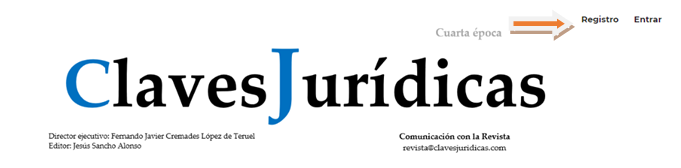
Authors shall register prior to submit an article proposal. The registration "Register"option is located at the top right-hand side of the web page.
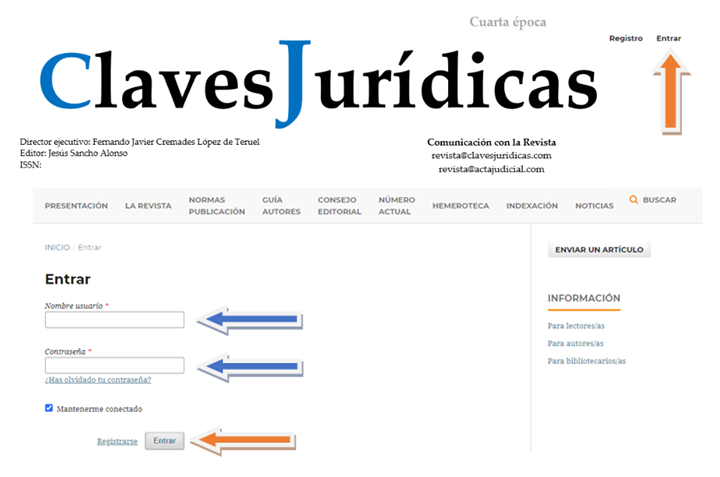
Once the registration is completed, click on "Login", located at the top right of the home page and add your username and password with which you have registered.
Submitting an article
Once logged in, a window like the one below will open. Go to the "Submissions" module and under "My list", click on "New submission".

Check the boxes that appear in the "Submission Requirements" section (authors submitting an article shall agree to comply with all the aspects indicated in these boxes. Otherwise, it is not possible to continue the submission process).
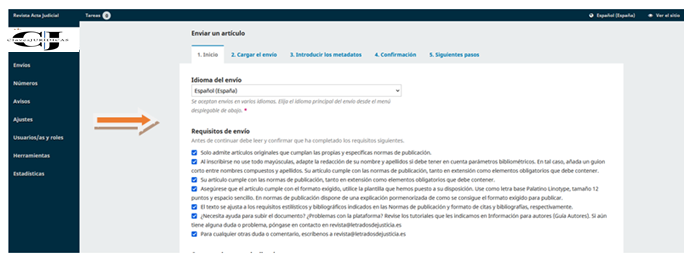
Authors can include observations and comments to the editor about the submitted work at the box labeled as "Comments for the editor". It is necessary to select with which role we want to make the submission (please choose author). You also have to accept the terms of copyright statement and data collection. Finally, click on "Save and continue" to continue with the process and access the second step, which is explained in the following section.

Article Upload
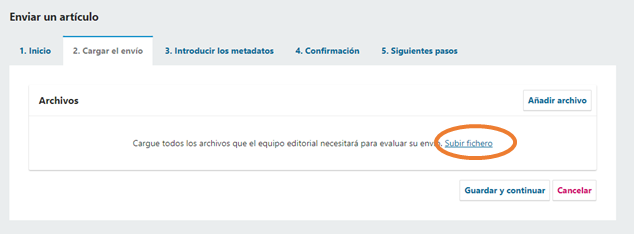
Then, the following window will appear.
There are two ways to upload the document: by selecting "Upload file" and searching for it on the computer or by dragging it directly (Word doc or docx format).
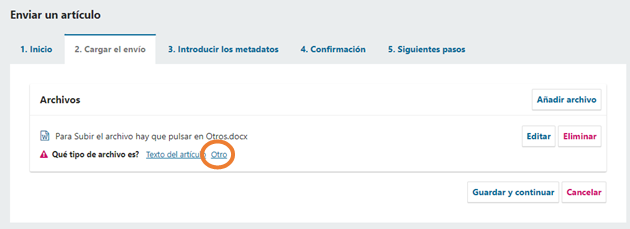
Once uploaded, click on "Otro"
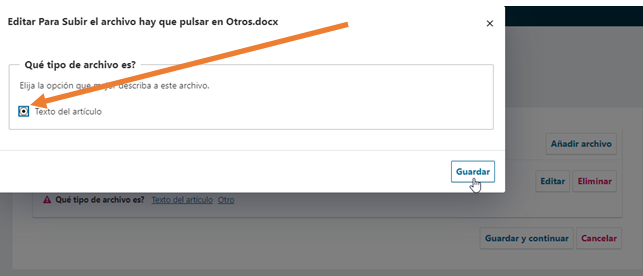
Click on "texto del artículo"
Click on "Guardar y continuar"
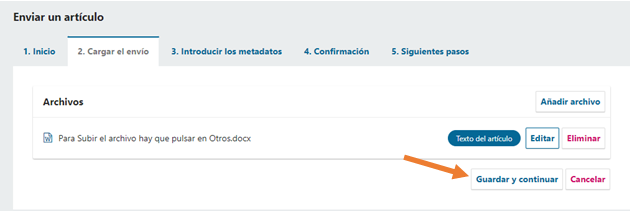
Afterwards, the "Metadata" will appear, where we can change the name of the file in the "Edit" option. This option is recommended if the file contains private information. Whether we have edited it or not, to continue the process click on "Continue"

Once we click on "Continue", we have the option to perform two actions (Finish step): upload more files or close the window if we have already finished the upload. We also have to click on "Complete" to continue to the next phase.

"Enter metadata" phase consists of several steps. Use the metadata contained in your article. The first metadata are the descriptive metadata of the article, where you can add information in the following fields:
- Prefix: if the title of the paperwork begins with an article or any element that could alter the alphabetical order, it should be entered in this section with the first letter capitalized.
- Title: Authors shall add the same title of the article sent, first letter in upper case and the rest in lower case.
- Subtitle: if the article has a subtitle, authors shall add it in the same way as the title. First letter in upper case and the rest in lower case.
- Abstract: the same abstract that appears in the main article should be add now.
Attention....!
You must enter metadata both in English and Spanish

It is then possible to introduce collaborators (authors/translators). If the data of the author responsible for the submission are already included, but it is a co-authored article (more than one author), the identification data should be included in this section, including name and surname, e-mail, country, and affiliation (referring to his/her profession, academic activity, institution, etc.). Please do not write everything in capital letters.
Once these fields are filled in, select the role of the collaborator (in our case it is an author), indicate if we want him/her to be the main contact for the editorial correspondence (otherwise the person responsible for the submission will be) and if we want to include him/her in the lists of notifications about the different phases of the editorial process. This process will have to be repeated as many times as there are authors/co-authors.


To complete the process of entering the metadata, you must include the keywords, separating them from each other by using the "enter" key. These refer to terms that can be made up of more than one word, for example, Judicial Public Faith. Finally, in "Citations" we will include the bibliographical references of the article. Please indicate the ones used in your article.

It is mandatory to include the bibliographical references of the article, being very important to separate them with the "Enter" key. Include those used in your article. In addition, you can add the DOI of the reference with the complete URL.
Once this step has been completed and the changes have been saved, we move on to the confirmation and completion of the submission.
A message confirming that the item has been submitted will be displayed. At this point, we have several options: if we do not want to finish the process, we must choose "Cancel". The submission will not be sent, but all the fields we have completed will be stored.

If on the other hand we want to finalize the process, we will click "Finalize submission" and confirm by pressing "Accept"

Finally, we will receive an e-mail notification informing us that the article submission was successfully received and that it is pending assignment to an external evaluator.
Once the submission has been confirmed and accepted, the process has been completed successfully. At this point we are given the option to review the submission or to create a new one.

We hope you found this tutorial useful.